


All Files Viewer
4.250.00 Reviews
App Specs
- Version
- 1.2.0
- Updated On
- License
- Free
- Downloads
- 10,000,000+
- Developer
- Nullbyte Labs
- Categories
- Productivity
- Platform
- Android
Screenshots
 Analysis by AppCompare
I tend to judge a document app by a simple test: does it make opening a file on my phone easier, or does it turn a quick task into a hunt through menus? All Files Viewer is built around that everyday problem. It is a productivity app for viewing documents, with PDF reading as its clearest focus. Its appeal is practical rather than flashy: when a file arrives and I need to check it without moving to a computer, a single viewer can be a handy place to start.
All Files Viewer is developed by Nullbyte Labs and is free to use. It is rated for Everyone, and its current release is version 1.2.0. The app has an average rating of 4.2 from around 9,500 ratings, and it has passed 10 million installs. Those figures suggest that people are finding a use for it, but they do not tell me whether it will suit every document workflow. The more important question is what you need to do with your files once they are open.
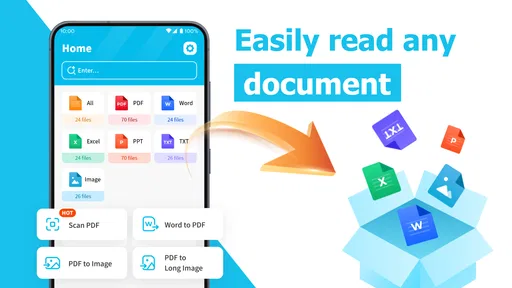
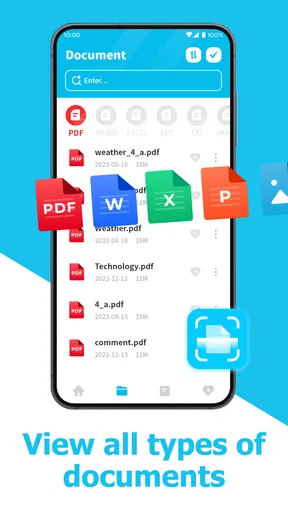
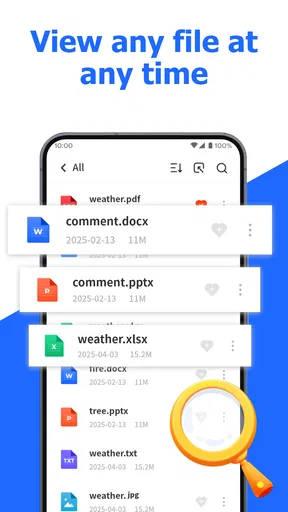
One place to open documents
I find the most useful way to judge a general document viewer is to start with the moment a file arrives: can I get to its contents without first choosing a specialist tool? That is the practical idea behind this section, and it also raises a useful question about what happens after a file opens. The next section looks at how I would make that first read a reliable part of an everyday routine.
The convenience of a general viewer
The useful idea behind All Files Viewer is that it gives you a document-reading option without requiring you to begin with a dedicated PDF workflow. That matters when files come from mixed sources: a work message, a downloaded form, a shared folder, or an attachment you just need to inspect. Instead of deciding which specialist app to use before you can even see the document, you can try a general-purpose viewer first.
That convenience is most valuable for reading, checking, and referring back to a file. A PDF reader is not automatically a document editor, and I would not choose this app on the assumption that it can rewrite a contract, redesign a form, or replace a full office suite. Its role is more modest and often more useful for a phone: get the document open and make it possible to consult the contents while you are away from a desk.
In that sense, the app sits between a built-in file preview and a specialist PDF tool. A basic preview is often enough for one quick glance, but it may not feel like a dependable place to return to when you regularly handle documents. A specialist reader is a stronger fit when your work depends on a particular set of PDF tools. All Files Viewer makes more sense when the priority is having a general reader available for ordinary document checks.
The distinction is worth keeping in mind before installing it. “All Files Viewer” is a broad name, but I would treat the app as a convenient viewer rather than assume that every file format, advanced document operation, or editing need is covered. If a file is essential to a deadline, test that exact kind of document before building your workflow around the app.
Worth Reading Before You Choose

Flipboard Shows What News Apps Must Do Beyond the Feed

Switching to Android Auto Means Rethinking Your Driving Routine

Google Calendar Makes a Crowded Week Easier to Manage

Ludo King Makes the Most of the Minutes Between Plans

Baby Panda World Brings Quick Play to Modern Phones, but Its Game Library Feels Busy

ESPN’s Live Game View Makes Following Close Games Easier
What the PDF focus changes
PDFs are awkward on a phone because they are often designed for paper-sized pages, not a narrow screen. A form may be readable only after zooming; a long report can take time to navigate; and a page that looks fine on a laptop may be uncomfortable to scan while standing in a queue. A reader’s value is therefore not simply that it displays a file. It should help make the document usable in the moment when you need it.
For everyday use, I would think of All Files Viewer as a way to bring a document into a quick review session: check a date, confirm a reference number, look over a set of instructions, or keep a PDF available while completing another task. That is a different job from annotating a report with colleagues or signing a form in a controlled business process. Knowing which job you have prevents the common frustration of expecting a lightweight viewer to behave like a complete document platform.
A practical routine for incoming files
One sensible way to use a general viewer is to make the file itself the starting point. When a document arrives, open it with the viewer, confirm that the pages render as expected, and then decide whether simple reading is enough. If you only need to consult the contents, there is no reason to move into a more complicated tool. If you need to make a change, add detailed notes, or collaborate, switch to software designed for that specific task.
This small decision point is a useful trade-off: a general app can reduce the number of times you have to choose among document tools, but it cannot make every specialist workflow disappear. I find it helpful to separate “I need to read this” from “I need to change or process this.” The first is where a viewer is naturally at home; the second is where a dedicated editor or service is usually a better choice.
For a busy day, that can mean checking a PDF before a meeting, then opening a proper editing tool later if the document needs work. It can also mean verifying that the file you received is the right one before forwarding it. These are small tasks, but they are precisely the moments when a straightforward viewer can save time without asking you to reorganize your whole phone around document management.
Where it fits in a workday
Picture receiving a PDF agenda while travelling to a meeting. You want to check the location, scan the topics, and confirm whether a particular attachment is included. All Files Viewer is the kind of app I would try for that quick check: it offers a dedicated place to read the document rather than leaving the task to a browser preview or a sequence of app prompts. If the agenda looks wrong or you need to revise it, that is the point to use a more capable tool.
The same approach applies to a downloaded instruction sheet, a school notice, or a receipt you need to consult later. Before relying on any viewer for a critical appointment, open the file in advance and make sure the text and page layout are legible on your device. This is a practical habit, not a special feature: checking early avoids discovering at the worst moment that a document is difficult to read on a small screen.
A less obvious benefit of this routine is that it helps keep the task small. Rather than treating every PDF as a project that needs importing, editing, and organizing, you can decide whether it is simply something to read. That reduces unnecessary steps for one-off documents. The trade-off is that people who want a searchable archive, shared annotations, or a carefully managed document library should look for those specific capabilities in a specialist product.
Trade-offs before making it your default
The main limitation of a general viewer is also the reason to use one: it prioritizes access over deep control. If your work involves marking up lengthy reports, filling complex forms, signing documents, or exchanging comments with a team, a focused PDF editor is likely to serve you better. Those tasks need dependable tools beyond simply viewing pages, and I would not assume that a broad viewer replaces them.
There is also a practical compatibility question with any app that promises a broad viewing role. Files can vary in layout and complexity, so the safest test is not an ordinary one-page document but the kind you actually receive. Try a file with the formatting, length, or embedded content that matters to you. If it opens clearly and lets you do what you need, the app may be enough; if not, keep a specialist alternative for that format or task.
Another trade-off is the difference between convenience and a complete workflow. A single viewer can be easier to reach than several narrowly focused apps, but it may not offer the familiar controls that frequent PDF users expect. If you read PDFs all day and depend on precise navigation or annotation, even a small gap in your preferred workflow can outweigh the benefit of a general-purpose app. If you only open them now and then, simplicity may matter more.
I would also avoid treating a large install count or a solid average rating as proof that the app matches your particular needs. Popularity can indicate broad appeal, but document work is personal: one person needs to glance at a form, another needs to prepare a legally important file. The app is a reasonable candidate for the first situation. For the second, I would verify the exact tools and handling process before relying on it.
Who is likely to get the most from it
All Files Viewer is best suited to people who want a free, uncomplicated way to consult documents on a phone, especially when PDF reading is part of an otherwise mixed set of everyday tasks. It is a sensible option for students checking a handout, workers reviewing a document before a conversation, or anyone who often receives files but does not want to edit every one. Android users need version 7.0 or later to run it.
It is less compelling for someone whose main need is document creation or collaboration. A full office app is better for changing text and working with spreadsheets or presentations; a specialist PDF editor is a better choice for frequent annotation and form work; and a built-in preview may be enough if you only open a document once in a while. Picking the smallest tool that genuinely handles your task is often more convenient than trying to make one app do everything.
The app was released on June 10, 2025, and its development is still represented by version 1.2.0. I see that as a reason to check whether its present capabilities match your habits, rather than to expect a mature, specialist document suite. Nullbyte Labs has positioned it in the practical productivity space, and that broad purpose is most useful when your expectations stay grounded in reading and access.
My recommendation is straightforward: try All Files Viewer if you frequently need to open PDFs and other everyday documents on your phone, and you value having a general reader ready for quick checks. Keep a dedicated editor for work that requires changes, signatures, or collaboration, and test important files before you depend on the app away from home. Its strongest case is convenient document access, not replacing every tool in your workflow.
A useful check before you settle on a routine
When deciding whether to keep it as your go-to reader, I would test the real chain from receiving a document to using it. Open a file from the place it normally arrives, check whether the page is easy to inspect, and see whether you can return to the relevant detail without losing your place. This tests the practical benefit that matters most: fewer interruptions between getting a file and understanding what it says.
For instance, if a supplier sends a lengthy price sheet, I might first use the viewer to confirm the product line and terms I need for a call. I would not assume that a quick reading session is enough to verify every detail or make changes to the sheet. If the next step is to compare figures, extract information, or send back an edited copy, that becomes a separate task for a tool built around editing or office work.
How it compares with familiar alternatives
Compared with opening a document in a browser or relying on the phone’s basic preview, a dedicated viewer can feel like a more deliberate place to read. The difference is useful when a file is more than a fleeting glance but still does not justify launching a full office suite. On the other hand, a preview already on your device may be the simpler choice for an occasional attachment, so I would not add an app unless the repeated convenience is worth it to you.
Compared with specialist PDF readers, the appeal here is breadth and approachability rather than a promise of deeper control. Regular reviewers who rely on annotations, structured signing, or detailed document handling should choose around those needs first. If you mostly receive documents to consult, a general-purpose option can spare you from learning or opening a heavier tool for every small check. The right comparison is not which app has the longest feature list, but which one matches what you actually do after opening a file.
Who should skip it, and what to check first
I would skip it as a primary work tool if your documents are usually part of a formal approval process, if you need to make precise changes, or if several people must comment on the same file. In those situations, choose a dedicated editor or collaboration product and confirm that its workflow fits your requirements. Likewise, if you rarely open documents, your device’s existing preview may already be enough.
For everyone else, a low-effort trial is sensible: start with a routine file, then test one document that represents your more demanding everyday case. Pay attention to readability and whether you can locate the passage you need comfortably on your screen. That small trial answers the most important personal question: whether this general reader reduces friction for your files, rather than simply adding another app to manage.
Pros
- Opens a wide range of common document and file formats.
- Provides a convenient way to browse files in one place.
- Can help preview files without installing a separate app for each type.
- Useful for checking documents while away from a computer.
- A straightforward option for occasional file viewing.
Cons
- Some formats may display incorrectly or not open at all.
- Viewing files does not necessarily include editing features.
- Large files may take longer to load on older devices.
- Certain file types may require a compatible app to open fully.
- Ads or upgrade prompts may interrupt the viewing experience.
FAQs for All Files Viewer
What is All Files Viewer, and what can I use it for?
All Files Viewer is a file-viewing app intended to help you open and inspect documents and other files stored on your device. Its supported formats and tools can vary by app version, so check the store listing before downloading if you need to work with a particular file type. It is best thought of as a convenient viewer rather than a replacement for specialist editing software.
Which file formats does All Files Viewer support?
The formats supported by All Files Viewer depend on the specific version and platform. Apps with this name may handle common document types, such as PDFs and Office files, as well as images or text, but support should not be assumed for every format. Review the app’s current description and permissions, and test important or uncommon files before relying on it for regular work.
Can I edit files with All Files Viewer, or is it only for viewing?
Despite its name, All Files Viewer is primarily presented as a way to open and read files; it may not provide full editing features. Some versions might include basic options such as sharing, printing, or file management, but those functions can differ. If you need to make substantial changes to documents, use an editor that explicitly supports the format and editing tools you require.
Does All Files Viewer work offline, and where does it access my files?
A viewer may be able to open files already saved on your device without an internet connection, though online features, ads, or cloud integrations may require connectivity. The app needs permission to access files you choose to open, and the exact access model varies by operating system and version. Check its permissions and privacy information, especially if you plan to handle sensitive documents.
Is All Files Viewer free, and is it safe to download?
Pricing and monetization can vary by platform and release: the app may be free to install while offering ads, in-app purchases, or paid features. For a safer download, use the official Google Play Store or Apple App Store, confirm the developer and recent reviews, and inspect the requested permissions. Avoid installing copies from unfamiliar sites, particularly if you will open private files.


